LoRaWAN Gateway Pocket
Portable Dual-Channel LoRaWAN Compatible Gateway
Product status: Production-ready beta
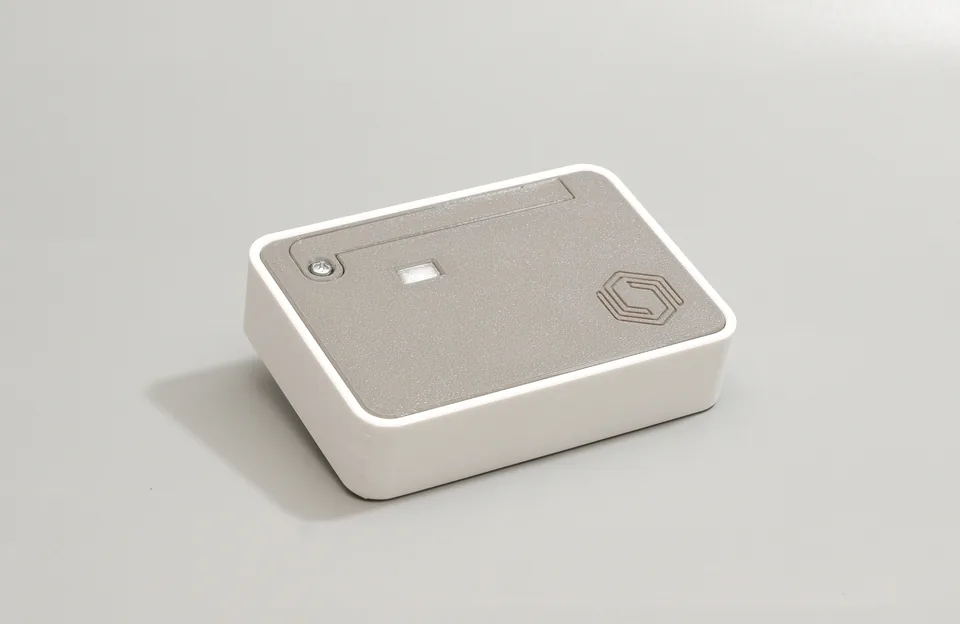
Overview
The Cubicore Gateway Pocket is a compact, affordable, and portable dual-channel LoRaWAN-compatible gateway for students, IoT enthusiasts, prototyping, portable demonstrations, and small-scale deployments.
It connects to a LoRaWAN network server through Wi-Fi. The gateway is preconfigured for the recommended Philippine AS923 Group 3 operating settings, allowing compatible LoRaWAN devices to work with minimal configuration after the gateway has been connected to Wi-Fi.
The gateway is designed for portability and ease of use. It has integrated internal omnidirectional antennas for LoRa, Wi-Fi, and Bluetooth, and can fit into space-constrained installations.
Key features
- Dual-channel LoRaWAN communication
- Optimized for AS923 Group 3 LoRaWAN operation in the Philippines
- Compact and lightweight design
- Affordable platform for learning and IoT development
- Wi-Fi network connectivity
- Wi-Fi provisioning via BLE for initial Wi-Fi setup
- Uplink and downlink support
- Pre-installed and preconfigured firmware
- Two USB Type-C ports
- Integrated internal omnidirectional antennas
- No external antenna installation required
For setup guidance, see Getting Started with Cubicore Gateway Series.
The Cubicore Gateway Hub uses the same internal gateway platform; see LoRaWAN Gateway Hub if you need the larger, external-antenna model.
Recommended Philippine configuration
The recommended configuration for Philippine deployments is:
| Setting | Recommended value |
|---|---|
| Frequency plan | Asia 920–923 MHz (AS923 Group 3) |
| LoRaWAN specification | LoRaWAN 1.0.4 |
| Regional Parameters | RP002 Regional Parameters 1.0.2 |
| Frequency 1 | 916.600 MHz |
| Frequency 2 | 916.800 MHz |
| Spreading factor | SF10 |
| Bandwidth | 125 kHz |
| ADR | Disabled |
| Dwell time | Disabled |
| Tested network server | The Things Network |
| TTN server address | au1.cloud.thethings.network |
| Packet-forwarder port | 1700 |
| SNTP server | ntp.pagasa.dost.gov.ph |
The gateway is intended to work out of the box with LoRaWAN devices configured for these recommended settings.
The recommended device configuration is SF10 with 125 kHz bandwidth and ADR disabled. Other frequency plans, frequencies, spreading factors, bandwidths, or LoRaWAN settings are not officially covered by this product documentation. Developers who use other settings do so at their own risk and must understand the applicable LoRaWAN behavior and Philippine regulatory requirements.
Gateway claiming is optional, but you still need a The Things Network account to create applications, register LoRaWAN end devices, configure your deployment, and view incoming application data.
How it works
- Power on the Cubicore Gateway Pocket using either USB Type-C port.
- Use the ESP BLE Provisioning app to connect the gateway to a Wi-Fi network.
- Place LoRaWAN devices within the gateway's operating range.
- Configure the LoRaWAN devices using the recommended AS923 Group 3, SF10, BW125, and ADR-disabled settings.
- Use the TTN setup information provided with the product to complete the gateway registration, if required.
The gateway is supplied with its recommended LoRaWAN settings already configured. Users do not normally need to access a gateway web interface or change the LoRaWAN gateway settings.
For initial setup, refer to the Getting Started with Cubicore Gateway Series.
If you want to manage the gateway from your own The Things Network account, see Set Up and Claim Your Cubicore Gateway.
Network connectivity
Wi-Fi
Wi-Fi provides the network connection between the Cubicore Gateway Pocket and the selected LoRaWAN network server or cloud platform. The gateway has internal Wi-Fi antennas and does not require an external Wi-Fi antenna.
Wi-Fi provisioning via BLE
Initial Wi-Fi setup is performed through Bluetooth Low Energy (BLE) using the ESP BLE Provisioning app. BLE is used during setup only; it is not the gateway's LoRaWAN backhaul.
The ESP BLE Provisioning app uses Bluetooth Low Energy to configure the gateway's Wi-Fi connection. After provisioning, the Gateway Pocket uses Wi-Fi to connect to the network server.
Both internal channels must be provisioned to the same Wi-Fi network.
The Gateway Pocket contains two internal one-channel gateway devices. Both channels must be provisioned to Wi-Fi for the complete dual-channel gateway to operate correctly.
For the complete Wi-Fi setup procedure, see Getting Started with Cubicore Gateway Series.
LoRaWAN operation
The gateway provides two LoRaWAN channels using integrated internal LoRa antennas. It supports uplink reception and downlink transmission.
The recommended operating configuration is limited to the Philippine AS923 Group 3 deployment settings listed above. Adaptive Data Rate (ADR) is not supported and should remain disabled on connected devices.
Hardware specifications
| Feature | Specification |
|---|---|
| Product | Cubicore Gateway Pocket |
| LoRaWAN compatibility | LoRaWAN-compatible |
| Radio channels | Dual-channel |
| Regional configuration | AS923 Group 3, Philippines |
| LoRa antenna | Integrated internal omnidirectional antenna |
| Wi-Fi antenna | Integrated internal omnidirectional antenna |
| Bluetooth antenna | Integrated internal omnidirectional antenna |
| External antenna connector | None |
| Network connectivity | Wi-Fi |
| Provisioning | Wi-Fi provisioning via BLE using the ESP BLE Provisioning app |
| USB ports | 2 × USB Type-C |
| Enclosure material | PETG |
| Enclosure color | White and gray |
| Dimensions | 100 × 70 × 25 mm |
USB Type-C ports
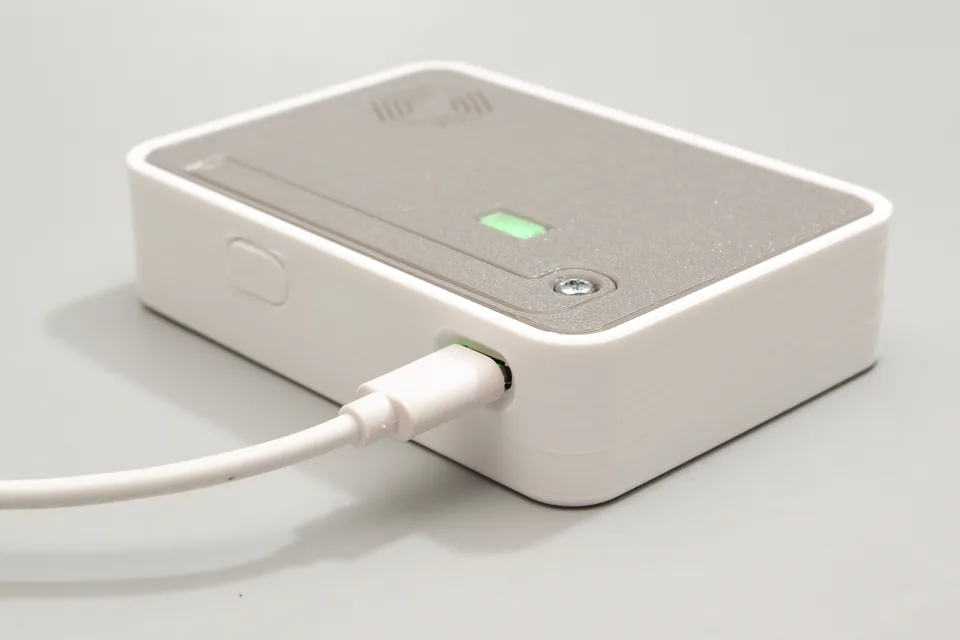
The USB Type-C ports on the Gateway Pocket, with the main port visible and the hidden port under a cover.
Both USB Type-C ports can power the gateway and provide setup/debug access.
- Main USB-C port: power input and setup/debug access for Channel 1
- Hidden USB-C port: power input and setup/debug access for Channel 2; protected by a cover
Either USB-C port may be used to power the gateway. Do not connect both ports to separate power supplies at the same time.
Power requirements
The gateway is powered through USB Type-C.
| Requirement | Value |
|---|---|
| Input voltage | 5 V DC |
| Connector | USB Type-C |
| Recommended power supply | 5 V / 2 A |
| USB-C Power Delivery | Not required |
| Power button | None |
| Shutdown procedure | None; disconnect the USB-C power source |
Estimated power consumption
These values are preliminary engineering estimates and have not been presented as laboratory measurements. Actual consumption may vary depending on Wi-Fi traffic, LoRa transmission activity, firmware behavior, and power-supply efficiency.
| Operating condition | Estimated consumption |
|---|---|
| Idle or light operation | 0.6–1.0 W |
| Typical Wi-Fi and LoRa operation | 1.0–1.8 W |
| Short-duration peak | Up to approximately 3.5 W |
Power LED
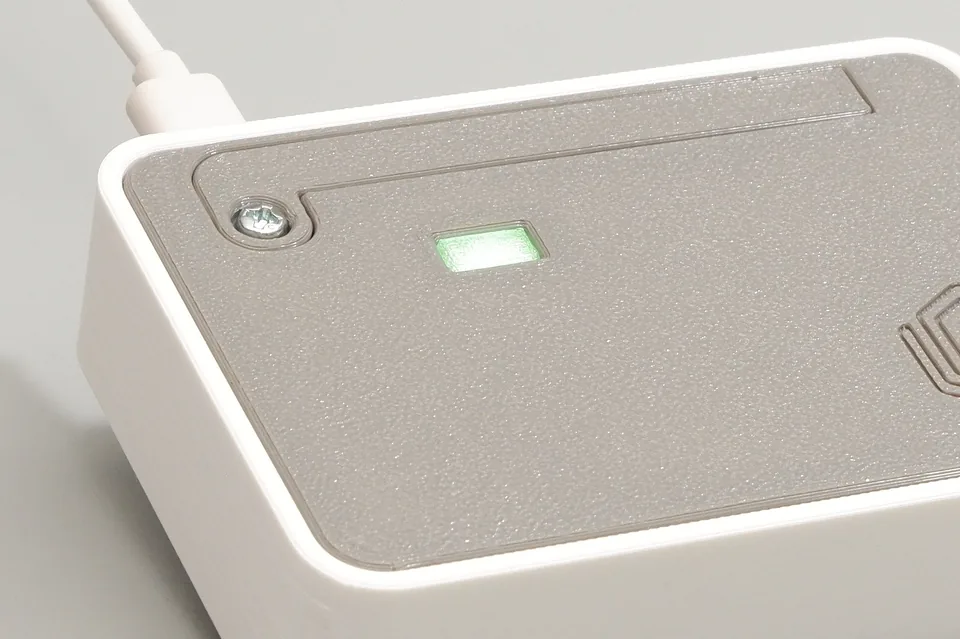
The power LED indicates that the gateway is receiving power.
The gateway has a simple power LED.
- On: The gateway is receiving power.
- Off: The gateway is not receiving power.
The power LED does not indicate Wi-Fi status, LoRaWAN activity, uplinks, downlinks, or network-server connectivity.
Firmware and provisioning
The Cubicore Gateway Pocket is shipped with pre-installed firmware and preconfigured LoRaWAN settings. Initial Wi-Fi setup is performed through Bluetooth using the ESP BLE Provisioning app.
For a detailed, step-by-step provisioning walkthrough, see Getting Started with Cubicore Gateway Series.
Supported applications
- IoT prototyping
- Educational projects
- LoRaWAN development and testing
- Portable IoT demonstrations
- Environmental monitoring prototypes
- Smart agriculture prototypes
- Asset and equipment monitoring prototypes
- Building and facility monitoring prototypes
- Small-scale LoRaWAN deployments
Package contents
- Cubicore Gateway Pocket
- USB Type-C cable
A 5 V / 2 A power supply is recommended and may be supplied separately depending on the purchase package.
Related guides
For support, email support@cubicore.io.
When contacting support, include:
- Gateway serial number
- TTN User ID, if applicable
- Description of the issue
- Screenshot of the error with sensitive information hidden
Do not send your TTN password or publicly share your gateway claim code.