PlatformIO with Visual Studio Code
Applicable to the Cubicore Devboard (ESP32-S3 + Semtech SX1262 on RAK3112 module).
Confirm the current hardware revision, pinout allocations, and supported firmware features in the Cubicore Devboard product documentation before deploying in field production.
The Arduino IDE is an excellent way to begin working with the Cubicore Devboard. When projects become larger, PlatformIO provides a more structured workflow with project-level configuration, dependency management, multi-file source code, and repeatable builds.
This guide walks you through setting up an embedded C++ development environment for the Cubicore Devboard using Visual Studio Code (VS Code) and the PlatformIO IDE extension, running the Arduino framework.
If you are following the beginner feature tutorials, you can continue with the Flashing Firmware (Arduino IDE) workflow. Use this PlatformIO guide when you want a structured project with explicit dependencies, multi-file source organization, and repeatable builds.
What you will build
In this guide, you will:
- Create a new PlatformIO project in Visual Studio Code.
- Configure it specifically for the Cubicore Devboard hardware architecture.
- Use the Arduino framework for hardware abstraction.
- Compile a startup and hardware diagnostic firmware.
- Upload the firmware to the Devboard over USB-C.
- Open the serial monitor at 115200 baud.
- Verify Flash, PSRAM, USB, and status LED behavior.
- Optionally add an external PlatformIO library dependency (
RadioLib).
1. What Is PlatformIO?
PlatformIO is an open-source, cross-platform ecosystem designed for embedded systems development. Rather than acting as a standalone text editor, PlatformIO integrates directly into modern code editors—most notably Visual Studio Code (VS Code).
PlatformIO vs. Arduino IDE
| Feature | Arduino IDE 2.x | PlatformIO + VS Code |
|---|---|---|
| Configuration Model | Settings are selected through IDE menus and may require additional documentation when projects are shared across team members. | Project settings are stored directly in platformio.ini and tracked in version control. |
| Dependency Management | Libraries are commonly managed globally through the IDE Library Manager. Updating a library can affect multiple projects. | Dependencies are declared per project in lib_deps, enabling isolated, reproducible library versions. |
| Code Intelligence | Standard auto-complete, keyword highlighting, and reference navigation. | Full C/C++ IntelliSense, peek definition, semantic symbol renaming, and compiler diagnostics. |
| Multi-File Architecture | Flat sketch directory (.ino tabs). | Standard C/C++ directory structure (src/, include/, lib/), well-suited for modular and object-oriented architectures. |
| Build & CI Automation | Interactive graphical interface. | Command-line interface (pio run), well-suited for automated scripts and headless CI/CD build pipelines. |
2. Prerequisites & Installation
Before writing firmware, make sure your software environment and hardware are ready.
Hardware Prerequisites
- Cubicore Devboard (V1.3 with RAK3112 module: ESP32-S3 + SX1262).
- USB Type-C Data Cable (must support both power delivery and USB 2.0 data communication).
- RF Antennas Attached: A 915 MHz Sub-GHz blade antenna on the
LORAconnector and a 2.4 GHz PCB antenna on theBLE/WIFIconnector.
Always attach both antennas before powering the board whenever firmware may initialize or transmit through Wi-Fi, BLE, or LoRa. Never transmit without the correct antenna or suitable RF load, as reflected RF energy back into the power amplifiers (PA) can cause severe overheating and permanent silicon damage to the SX1262 or ESP32-S3.
Software Installation
- Install Visual Studio Code:
Download and install VS Code for your operating system from the official website. - Install the PlatformIO IDE Extension:
- Open VS Code.
- Click the Extensions icon on the left Activity Bar (or press
Ctrl+Shift+X/Cmd+Shift+X). - Search for
PlatformIO IDE. - Click Install (published by PlatformIO).
- Wait for PlatformIO Core to finish background initialization. When prompted, restart VS Code to finalize the toolchain paths.
- Install the C/C++ Extension:
In the Extensions panel, ensure the official C/C++ extension (by Microsoft) is also enabled to provide complete IntelliSense and header indexing.
At this point, Visual Studio Code and PlatformIO should be installed, and the PlatformIO icon should be visible in the VS Code Activity Bar. If PlatformIO has not finished installing its toolchain, complete that process before creating the project.
3. Creating a Cubicore Devboard Project
PlatformIO projects are generated using the built-in Project Wizard.
- In VS Code, click the PlatformIO Alien icon on the left Activity Bar to open the PlatformIO Home screen.
- Under the Quick Access panel, click Projects → Create New Project.
- In the Project Wizard dialog, configure the following settings:
- Name:
cubicore-diagnostic(or your preferred project name). - Board: Type
ESP32-S3in the search field and select:
Espressif ESP32-S3-DevKitC-1-N8 (8 MB QD, No PSRAM)(Board ID:esp32-s3-devkitc-1). - Framework: Select
Arduino. - Location: Check Use default location, or uncheck it to select a custom directory inside your workspace.
- Name:
- Click Finish. PlatformIO will initialize the directory structure and generate a default
platformio.iniconfiguration.
esp32-s3-devkitc-1 TargetPlatformIO uses the esp32-s3-devkitc-1 board definition as the base target because a dedicated Cubicore board manifest is not currently included in the public registry. The Cubicore Devboard is not physically identical to an Espressif DevKitC-1; rather, the Cubicore-specific overrides below adapt that base target to the verified Cubicore Devboard hardware (16 MB Flash, 8 MB OPI PSRAM, and native USB CDC).
4. Configuring platformio.ini for Cubicore Hardware
The project wizard creates a starting configuration, but the Cubicore Devboard requires the verified hardware settings below.
Open the generated platformio.ini file in the root of your newly created project. Replace its contents with the verified Cubicore Devboard configuration below:
; ==============================================================================
; PlatformIO Configuration for Cubicore Devboard (V1.3)
; Microcontroller: Espressif ESP32-S3 (RAKwireless RAK3112 Module)
; Hardware: 16 MB Flash (QIO), 8 MB PSRAM (OPI), Native USB-C CDC
; ==============================================================================

[env:cubicore_devboard]
platform = espressif32
board = esp32-s3-devkitc-1
framework = arduino

; ------------------------------------------------------------------------------
; Flash Memory Overrides (16 MB Quad SPI @ 80 MHz)
; ------------------------------------------------------------------------------
board_build.flash_mode = qio
board_build.f_flash = 80000000L
board_build.flash_size = 16MB
board_upload.flash_size = 16MB
board_build.partitions = default_16MB.csv

; ------------------------------------------------------------------------------
; Octal SPI PSRAM & Memory Timing
; ------------------------------------------------------------------------------
board_build.arduino.memory_type = qio_opi

; ------------------------------------------------------------------------------
; Compiler Build Flags
; ------------------------------------------------------------------------------
build_flags =
    -DARDUINO_USB_CDC_ON_BOOT=1
    -DARDUINO_USB_MODE=1
    -DBOARD_HAS_PSRAM
    -mfix-esp32-psram-cache-issue

; ------------------------------------------------------------------------------
; Serial Monitor & Upload Protocol
; ------------------------------------------------------------------------------
monitor_speed = 115200
upload_speed = 921600
Technical Parameter Breakdown
| Configuration Key | Setting | Technical Rationale |
|---|---|---|
platform | espressif32 | Uses Espressif's 32-bit MCU platform and Xtensa toolchain packages. |
board | esp32-s3-devkitc-1 | Base ESP32-S3 silicon architecture definition. |
framework | arduino | Specifies the Arduino ESP32 core API. |
board_build.flash_mode | qio | Enables high-speed 4-bit Quad I/O SPI flash transfer mode. |
board_build.f_flash | 80000000L | Clocks the flash bus at 80 MHz for peak firmware throughput. |
board_build.flash_size | 16MB | Matches the physical 16 MB Flash onboard the RAK3112 module. |
board_build.partitions | default_16MB.csv | Applies Espressif's 16 MB partition table, reserving ample space for application code and NVS. |
board_build.arduino.memory_type | qio_opi | Configures memory controller bus timing for Quad Flash combined with Octal SPI PSRAM. |
-DARDUINO_USB_CDC_ON_BOOT=1 | Build Flag | Mandatory: Instructs the ESP32-S3 native USB controller to enumerate as a Virtual COM Port immediately at boot. Without this flag, Serial.print() produces no output over USB-C. |
-DBOARD_HAS_PSRAM | Build Flag | Instructs the runtime memory allocator to initialize the 8 MB external PSRAM heap. |
monitor_speed | 115200 | Standard baud rate for diagnostic log output. |
upload_speed | 921600 | High-speed flashing rate over native USB-C. |
5. PlatformIO Project Structure
A standard PlatformIO project contains the following directory layout:
cubicore-diagnostic/
├── .pio/                  <-- Build cache, compiled binaries, and libraries (git-ignored)
├── .vscode/               <-- VS Code IntelliSense include paths and launch configs
├── include/               <-- Project C/C++ header files (.h, .hpp)
├── lib/                   <-- Private, project-specific custom C/C++ libraries
├── src/                   <-- Main application source code
│   └── main.cpp           <-- Firmware entry point (setup and loop)
├── test/                  <-- Unit test suites for local or on-device execution
└── platformio.ini         <-- Declarative hardware & build configuration
src/main.cpp: Unlike Arduino sketches (.ino), PlatformIO uses standard C++ source files (.cpp). You must explicitly include the Arduino core header:#include <Arduino.h>.platformio.ini: The single source of truth for your build flags, dependencies, and flash options.
6. Writing the Diagnostic Test Firmware
With the project configuration in place, the next step is to compile a small firmware program that verifies the development environment and board connection.
Open src/main.cpp and replace its contents with the hardware diagnostic sketch below:
/*
 * Cubicore Devboard - Hardware Diagnostic & LED Blink Test (PlatformIO)
 * Hardware Target: ESP32-S3 (RAK3112 Module)
 * Architecture: 16 MB Flash | 8 MB OPI PSRAM | Native USB CDC Serial
 */

#include <Arduino.h>

// Onboard User-Programmable LEDs (Active HIGH)
#define PIN_LED_BLUE   45
#define PIN_LED_GREEN  46

void setup() {
  // Initialize native USB CDC serial output
  Serial.begin(115200);

  // Allow up to 3 seconds for the USB CDC Serial Monitor to connect
  unsigned long startWait = millis();
  while (!Serial && (millis() - startWait < 3000)) {
    delay(10);
  }

  // Configure onboard LED GPIOs as outputs
  pinMode(PIN_LED_BLUE, OUTPUT);
  pinMode(PIN_LED_GREEN, OUTPUT);

  // Print system architecture diagnostics
  Serial.println("\n==========================================");
  Serial.println("   Cubicore Devboard (RAK3112) Online!    ");
  Serial.println("==========================================");
  Serial.printf("Chip Model:     %s (Rev %d)\n", ESP.getChipModel(), ESP.getChipRevision());
  Serial.printf("CPU Frequency:  %d MHz\n", ESP.getCpuFreqMHz());
  Serial.printf("Flash Size:     %d MB\n", ESP.getFlashChipSize() / (1024 * 1024));
  Serial.printf("Free Heap:      %d Bytes\n", ESP.getFreeHeap());
  Serial.printf("Total PSRAM:    %d Bytes\n", ESP.getPsramSize());
  Serial.printf("Free PSRAM:     %d Bytes\n", ESP.getFreePsram());
  Serial.println("==========================================\n");
}

void loop() {
  // State 1: Blue LED ON, Green LED OFF
  digitalWrite(PIN_LED_BLUE, HIGH);
  digitalWrite(PIN_LED_GREEN, LOW);
  Serial.println("[Status] Blue LED ON  | Green LED OFF");
  delay(1000);

  // State 2: Blue LED OFF, Green LED ON
  digitalWrite(PIN_LED_BLUE, LOW);
  digitalWrite(PIN_LED_GREEN, HIGH);
  Serial.println("[Status] Blue LED OFF | Green LED ON");
  delay(1000);
}
7. Building the Firmware
Before uploading to physical hardware, verify that the compiler successfully links the firmware binary.
Method 1: Via the PlatformIO Status Bar
Locate the PlatformIO Toolbar at the bottom-left corner of the VS Code window:
- Click the Build checkmark icon (
✓).
Method 2: Via the Command Palette or Terminal
- Press
Ctrl+Shift+P(orCmd+Shift+Pon macOS) and run:
PlatformIO: Build - Alternatively, open a terminal in VS Code and execute:
pio run
Interpreting the Build Output
The exact memory usage, binary size, tool versions, and build duration will vary depending on the PlatformIO and Arduino-ESP32 versions installed. Upon completion, the terminal displays the binary size and memory utilization:
RAM:   [=         ]   5.8% (used 18852 bytes from 327680 bytes)
Flash: [          ]   4.1% (used 266601 bytes from 6553600 bytes)
Building .pio/build/cubicore_devboard/firmware.bin
esptool.py v4.9.0
Creating esp32s3 image...
Merged 2 ELF sections
Successfully created esp32s3 image.
========================= [SUCCESS] Took 3.42 seconds =========================
8. Uploading Firmware to the Devboard
Once the firmware builds successfully, upload it to the physical Devboard and verify the runtime output.
- Connect the Cubicore Devboard to your computer using your USB Type-C data cable.
- Click the Upload right-arrow icon (
➜) on the bottom PlatformIO toolbar (or executepio run -t uploadin the terminal). - PlatformIO automatically detects the serial port (e.g.,
COM47on Windows,/dev/cu.usbmodem...on macOS, or/dev/ttyACM0on Linux) and uploads the required firmware images to the Devboard viaesptool.py.
A successful upload concludes with:
Wrote 266608 bytes at 0x00010000 in 3.65 seconds (584.2 kbit/s)...
Hash of data verified.

Leaving...
Hard resetting via RTS pin...
========================= [SUCCESS] Took 6.84 seconds =========================
9. Opening and Verifying the Serial Monitor
To view the hardware diagnostic output:
- Click the Serial Monitor plug icon on the bottom PlatformIO toolbar (or press
Ctrl+Alt+S/Cmd+Alt+S/ runpio device monitor). - Because
monitor_speed = 115200is defined inplatformio.ini, PlatformIO automatically establishes the serial connection at 115200 baud. - Observe the live startup messages and hardware diagnostics:
==========================================
   Cubicore Devboard (RAK3112) Online!
==========================================
Chip Model:     ESP32-S3 (Rev 2)
CPU Frequency:  240 MHz
Flash Size:     16 MB
Free Heap:      320492 Bytes
Total PSRAM:    8388608 Bytes
Free PSRAM:     8386348 Bytes
==========================================

[Status] Blue LED ON  | Green LED OFF
[Status] Blue LED OFF | Green LED ON
[Status] Blue LED ON  | Green LED OFF
- Confirm that the onboard Blue LED (
GPIO 45) and Green LED (GPIO 46) alternate state every second. - Confirm that Total PSRAM reports
8388608 Bytes(8 MB), proving that the Octal SPI PSRAM bus is properly initialized.
You are ready to continue when
Before moving on to building complex applications, verify that your setup meets this checklist:
- The PlatformIO project builds successfully (
pio runexits with[SUCCESS]). - The firmware uploads without errors over the USB-C connection.
- The serial monitor displays the Cubicore startup message at 115200 baud.
- The reported hardware values match the board: 16 MB Flash and 8388608 Bytes (8 MB) Total PSRAM.
- The onboard blue LED (
GPIO 45) and green LED (GPIO 46) alternate state every second. - The board restarts and resumes operation cleanly after pressing the hardware Reset (
R) button.
10. Manual ROM Bootloader Recovery Mode
Modern versions of the ESP32 Arduino Core automatically trigger reset and flashing via USB DTR/RTS signals. In most cases, you will not need manual recovery.
However, if an upload times out or displays A fatal error occurred: Failed to connect to ESP32-S3 (for example, if previous firmware disabled interrupts or crashed into a tight fault loop), you can place the microcontroller into hardware ROM Download Mode manually.
Locating the Physical Controls
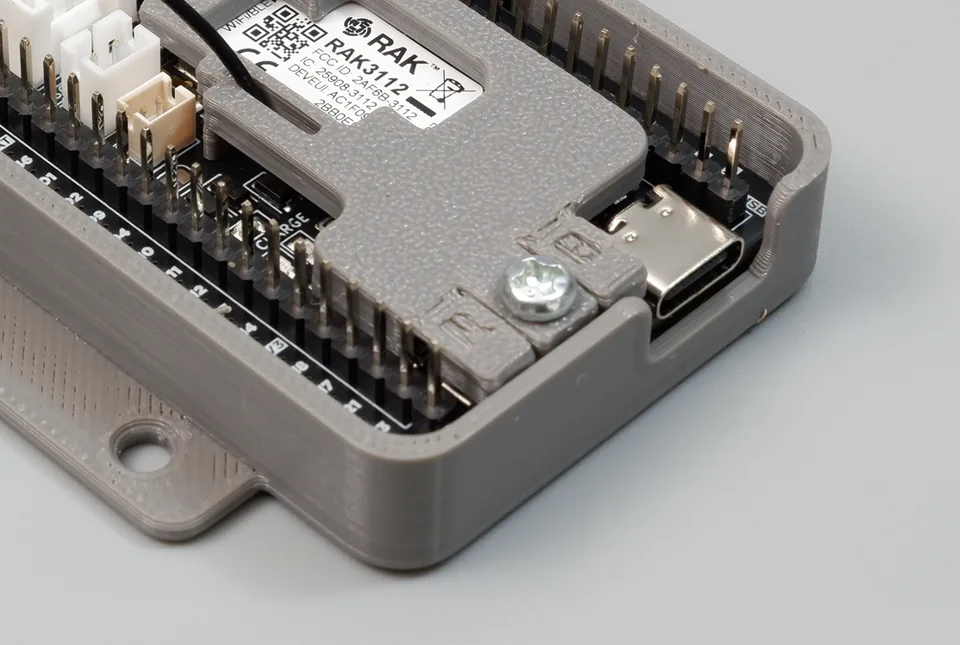
Figure: The pre-assembled antenna locker plate features integrated 3D-printed flexible button tabs embossed with "R" (Reset) and "B" (Boot) for easy finger actuation.
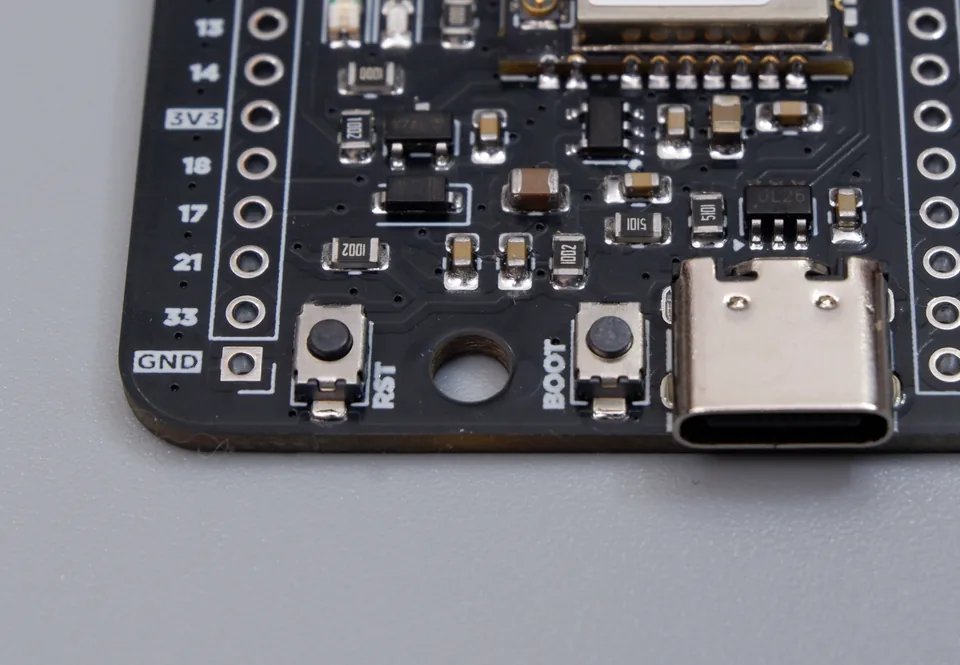
Figure: On the bare PCB without an enclosure, the tactile switches labeled BOOT (GPIO 0) and RST (CHIP_PU) sit directly adjacent to the USB-C receptacle.
| Control | Locker Plate Tab | Board Label | ESP32-S3 Pin | Function |
|---|---|---|---|---|
| BOOT Button | Embossed B | BOOT / IO0 | GPIO 0 | Pulls GPIO 0 LOW to enter ROM Bootloader mode. |
| RST Button | Embossed R | RST | CHIP_PU | Hardware system reset line (Active LOW). |
Manual Boot Sequence:
- Press and hold the
B(BOOT) button (or flexible tab on the antenna locker plate). - While continuing to hold
B, press and release theR(RST) button. - Release the
B(BOOT) button. - The board is now locked in ROM Download Mode. Click Upload in PlatformIO.
- Once flashing completes, press and release the
R(RST) button once to boot into your newly uploaded firmware.
11. Optional: Adding Libraries Using lib_deps
One of PlatformIO's key advantages is reproducible, declarative dependency management. Instead of searching a GUI and manually managing updates across projects, you declare required libraries directly in platformio.ini.
Example: Installing the SX1262 LoRa Driver (RadioLib)
To add Jan Gromes' RadioLib library (used in the Devboard's LoRaWAN and LoRa P2P guides), append lib_deps to your platformio.ini:
lib_deps =
    jgromes/RadioLib@^7.4.0
Installing RadioLib only makes the library available to the project. Radio pin assignments, regional frequency settings, radio initialization, LoRaWAN credentials, and packet configuration are covered in the Joining a LoRaWAN Network and LoRa P2P guides.
How lib_deps Works:
- Automated Fetching: When you next build or run
pio pkg install, PlatformIO queries the PlatformIO Registry, downloadsRadioLib, and places it into the local.pio/libdeps/cubicore_devboard/directory. - Semantic Versioning (
^): The prefix^7.4.0instructs PlatformIO to accept backwards-compatible patches and minor releases (e.g., 7.4.1, 7.8.1) while preventing breaking API changes from major version updates. - Multi-Library Stacks: Additional libraries can be added as indented newlines:
lib_deps =jgromes/RadioLib@^7.4.0adafruit/Adafruit SHT31 Library@^2.2.2
12. Troubleshooting & Diagnostics
Issue 1: Serial Monitor Output Is Completely Blank
- Cause 1: The
-DARDUINO_USB_CDC_ON_BOOT=1build flag was omitted fromplatformio.ini. By default, the ESP32-S3 directs serial traffic to UART0 pins instead of the physical USB-C port. - Cause 2: The firmware booted and printed before the Serial Monitor connection opened.
- Solution: Verify the build flags in
platformio.iniand confirm yoursetup()function contains the connection loop:while (!Serial && (millis() - startWait < 3000)) {delay(10);}
Issue 2: Upload Fails with Failed to connect to ESP32-S3
- Cause: The ESP32-S3 is running code that disabled interrupts, entered deep sleep, or crashed into a hard fault loop, preventing the serial bootloader from asserting RTS reset.
- Solution: Put the board into manual ROM Bootloader mode using the Manual ROM Bootloader Recovery Mode procedure above.
Issue 3: Serial Port Access Denied / Resource Busy
- Cause: Another program (such as an open Arduino IDE Serial Monitor, PuTTY, or a previous terminal process) has locked the COM/serial port.
- Solution: Close any external terminal windows. PlatformIO automatically pauses its own integrated Serial Monitor during uploads, but third-party applications will block access.
Issue 4: Linux Permission Denied on /dev/ttyACM0
- Cause: Standard user accounts on Linux distributions do not have read/write access to dialout serial devices by default.
- Solution: Add your user account to the
dialoutgroup and reload udev rules:Log out and log back in for group permissions to take effect.sudo usermod -a -G dialout $USER
Issue 5: Runtime Crash / Panic on Memory Allocation
- Cause: Attempting to allocate external PSRAM buffers when
board_build.arduino.memory_typeis missing or configured for Quad PSRAM instead of Octal SPI. - Solution: Verify that
board_build.arduino.memory_type = qio_opiand-DBOARD_HAS_PSRAMare present inplatformio.ini.
Next Steps
With your PlatformIO development environment verified, you can now explore more advanced Devboard capabilities:
- Sensors & Expansion: Connect I²C modules and build field-ready sensor reading nodes in Peripherals and I2C and the SHT30 Temperature & Humidity Guide.
- Long-Range LoRaWAN: Provision your board on The Things Network (TTN) using Joining a LoRaWAN Network.
- Direct Point-to-Point LoRa: Communicate between Devboards without gateways in LoRa P2P.
- Power Optimization: Learn low-power deep sleep and battery management techniques in Power and Battery Optimization.
Once this PlatformIO workflow is working, you can also explore AI-assisted development workflows to use Google Antigravity and other VS Code-compatible AI coding agents with your projects.