Integrating with Cubicore Cloud
Applicable to the Cubicore Devboard (ESP32-S3 + SX1262 on RAK3112 module).
Confirm the current hardware revision, pinout allocations, and supported firmware features in the Cubicore Devboard product documentation before deploying in field production.
1. Introduction: From Network Server to Live Dashboard
In Chapter 6: Joining a LoRaWAN Network, your Cubicore Devboard transmitted environmental sensor data to The Things Network (TTN), where a JavaScript payload formatter decoded the raw binary bytes into structured JSON objects (such as temperature and humidity).
While the TTN Console is essential for verifying radio joins, inspecting raw uplink streams, and managing keys, it is an administrative console rather than an end-user visualization platform. To transform raw sensor streams into actionable intelligence, you need a dedicated cloud dashboard.
Cubicore Cloud (https://cubicore.cloud/) is a real-time IoT monitoring platform engineered specifically for Cubicore hardware and connected LoRaWAN devices. It renders responsive metric cards, historical time-series graphs, and gateway link-quality metrics without requiring you to build custom web applications, configure time-series databases, or manage backend infrastructure.
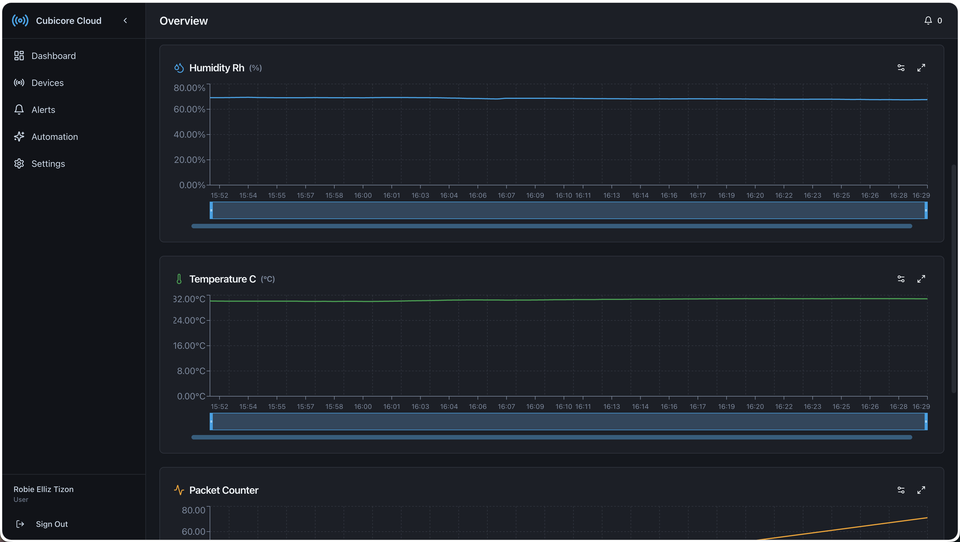
Figure 1: Cubicore Cloud overview dashboard displaying real-time telemetry graphs for humidity, temperature, and packet counters.
How Device Identity Bridging Works
Connecting TTN to Cubicore Cloud does not require generating individual API tokens or flashing device-specific cloud credentials into your ESP32-S3 firmware:
- Application-Wide Webhook: You configure a single webhook in your TTN Application. Every time any device in that application uplinks, TTN forwards the payload to Cubicore Cloud's ingest backend.
- Global IEEE DevEUI Identity: TTN's forwarded JSON payload automatically includes the device's globally unique 64-bit identifier:
end_device_ids.dev_eui. - Claiming via DevEUI: When you claim a device on Cubicore Cloud using its DevEUI as the Device Claim Code, the cloud maps all incoming telemetry with that DevEUI directly to your personal dashboard in real time.
2. Step 1: Configuring the TTN Custom Webhook
To forward decoded sensor telemetry from The Things Network to Cubicore Cloud, set up a Custom webhook in your TTN Application.
2.1 Locate Your TTN Application
- Open the The Things Network Console and select your cluster (e.g.,
au1). - Navigate to Applications and select the application containing your registered Devboard (for example,
cubicore-devboard-testfrom Chapter 6).
2.2 Add a Custom Webhook
-
In the left-hand navigation menu of your Application overview, click Integrations → Webhooks.
-
Click the + Add webhook button in the top-right corner.
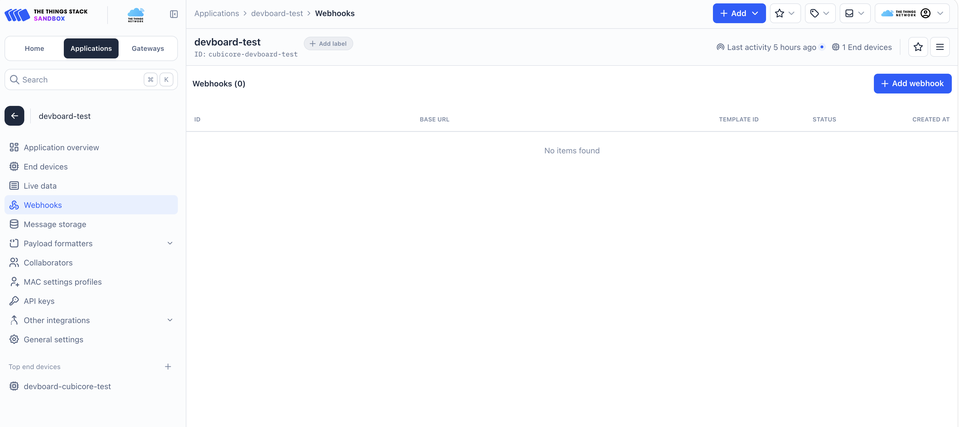
Figure 2: Navigating to Integrations → Webhooks and selecting the "+ Add webhook" button in the TTN Console.
-
In the list of webhook templates, select Custom webhook.
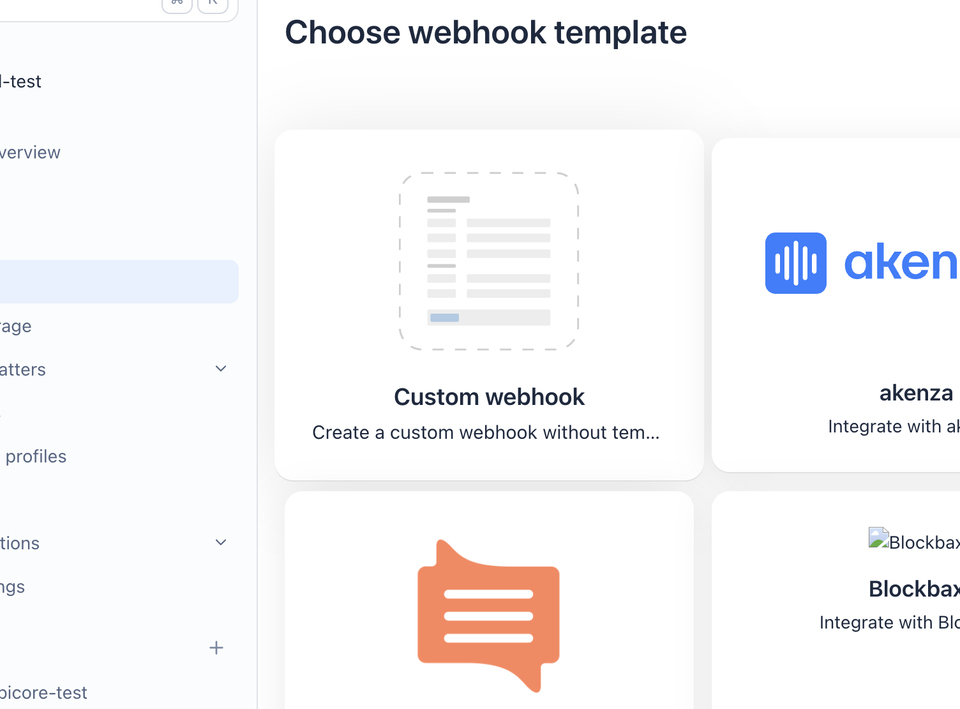
Figure 3: Selecting the Custom webhook template card.
2.3 Webhook Parameters
Fill in the custom webhook configuration fields:
| Field | Setting / Value | Description |
|---|---|---|
| Webhook ID | cubicore-cloud-test | A unique alphanumeric identifier for this integration within your TTN application. |
| Webhook format | JSON (Default) | The standard JSON payload format generated by The Things Stack v3. |
| Base URL | https://bxrozjkemyyrgwjfiiki.supabase.co/functions/v1/ttn-webhook?key=2a8059adcf56be27903d16e4f94cdab7d72fd6cdc4f3860d | The shared public ingest edge endpoint for Cubicore Cloud. |
| Downlink API key | (Leave empty) | Downlinks are not required for sensor monitoring uplinks. |
| Enabled event types | Uplink message (Checked by default) | Ensures all incoming telemetry packets trigger an HTTP POST to Cubicore Cloud. Leave the sub-path empty. |
| Additional headers & parameters | (Leave empty / default) | No additional authorization headers or query parameters are required. |
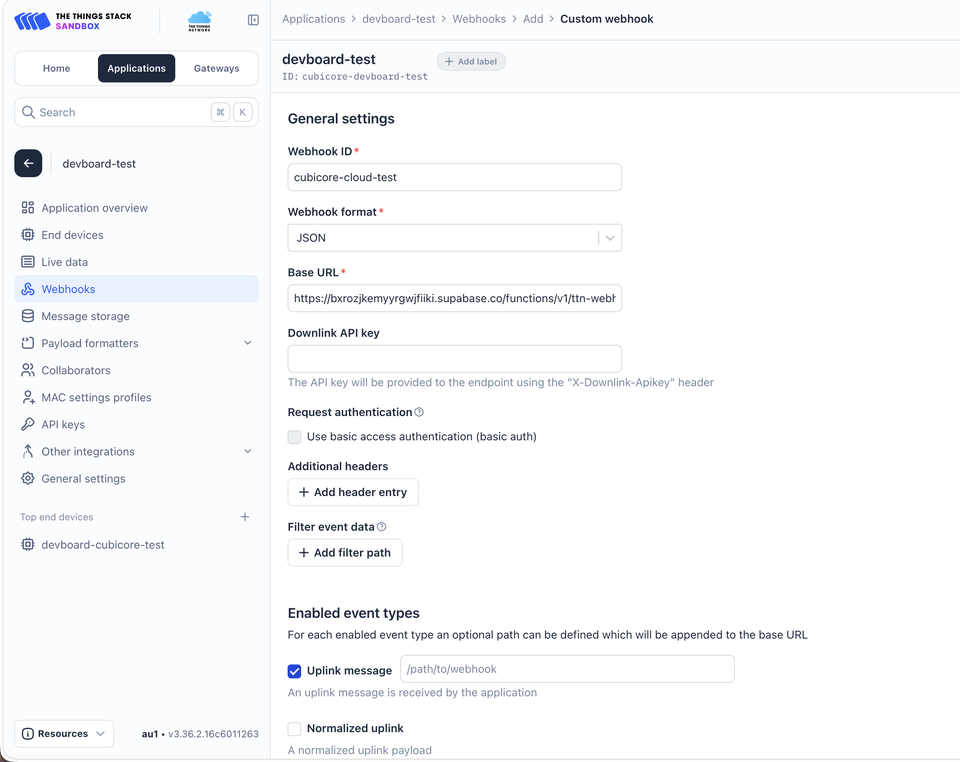
Figure 4: Entering Webhook ID, Base URL, and enabling Uplink message events.
The provided Base URL routes directly to a high-concurrency Supabase Edge Function that acts as Cubicore Cloud's universal telemetry bridge. When TTN triggers the webhook, the edge function:
- Validates the incoming security key query parameter.
- Extracts the
dev_euiand thedecoded_payloadproduced by your TTN Payload Formatter. - Captures RF metadata (RSSI, SNR, gateway ID, and channel frequency).
- Commits the record to Cubicore Cloud's database, instantly pushing updates to active client dashboards via WebSocket subscriptions.
The Base URL provided above is the shared public endpoint intended for evaluation, rapid prototyping, and developer accounts. For enterprise deployments requiring dedicated private endpoints, custom data retention policies, white-labeled domains, or isolated backend infrastructure, contact Cubicore at support@cubicore.io.
2.4 Save & Verify Webhook Status
Click Add webhook (or Save changes at the bottom of the form).
When first created, TTN displays the webhook status as Pending with an amber indicator because no transmissions have yet been dispatched:

Figure 5: Newly created webhook displaying Pending status before the first uplink.
As soon as your Cubicore Devboard sends an uplink message and TTN receives a successful HTTP 200 OK response from Cubicore Cloud's edge function, the status automatically transitions to Healthy with a blue indicator:

Figure 6: Webhook status updated to Healthy after successfully delivering sensor telemetry.
The webhook is now fully operational. Every uplink message decoded by TTN will automatically be forwarded to Cubicore Cloud.
3. Step 2: Registering & Claiming Your Device on Cubicore Cloud
Now that TTN is forwarding data to the cloud ingest backend, you need to bind your Devboard to your Cubicore Cloud user account.
3.1 Access Cubicore Cloud & Create Account
-
Open https://cubicore.cloud/ in your web browser.
-
If you already have an account, enter your credentials and click Sign In.
-
If you are new to the platform, click Register to create an account. Fill in your Display Name, Email, and Password (minimum 6 characters), and click Create Account.
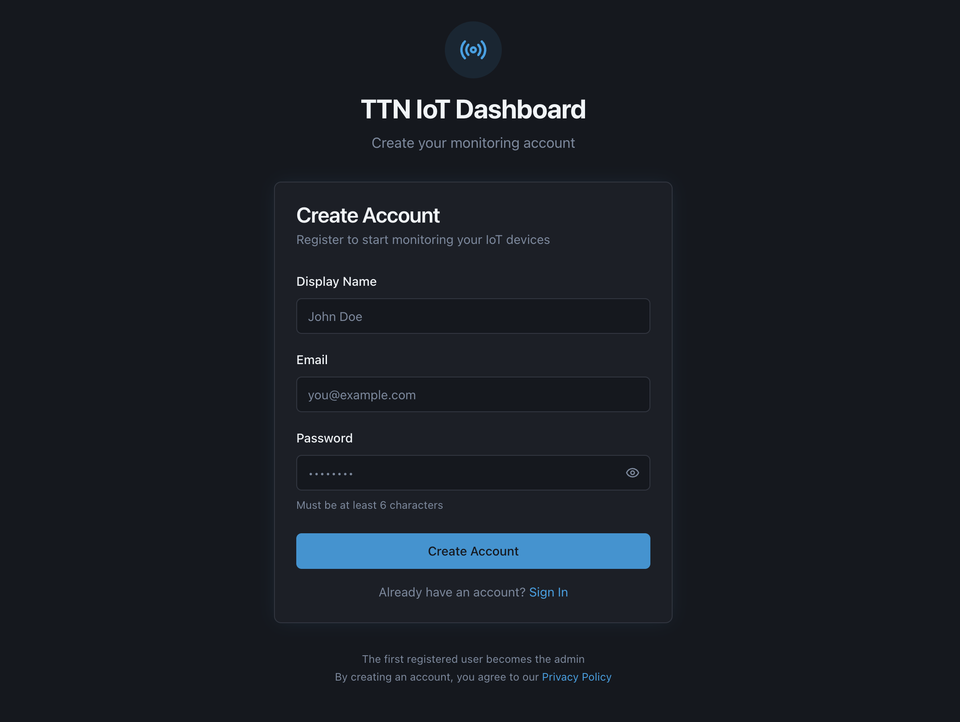
Figure 7: Registering a user account on Cubicore Cloud.
-
Once authenticated, you will be redirected to your personal Dashboard.
3.2 Open the Device Claiming Dialog
On your Cubicore Cloud Dashboard:
-
Locate the top-right navigation toolbar.
-
Click the blue
[+ Claim Device]button.
Figure 8: Clicking the "+ Claim Device" button in the upper-right toolbar.
-
The "Claim a Device or Group" modal dialog will open.
3.3 Enter Your Device Claim Code (DevEUI)
Cubicore Cloud supports two claiming workflows:
- Scan QR Code: For factory pre-packaged Cubicore hardware equipped with external QR labels, you can use your smartphone or webcam to scan the device code instantly.
- Claim Code (Default TTN Workflow): For custom Devboards and developer setups, claiming is performed using your DevEUI.
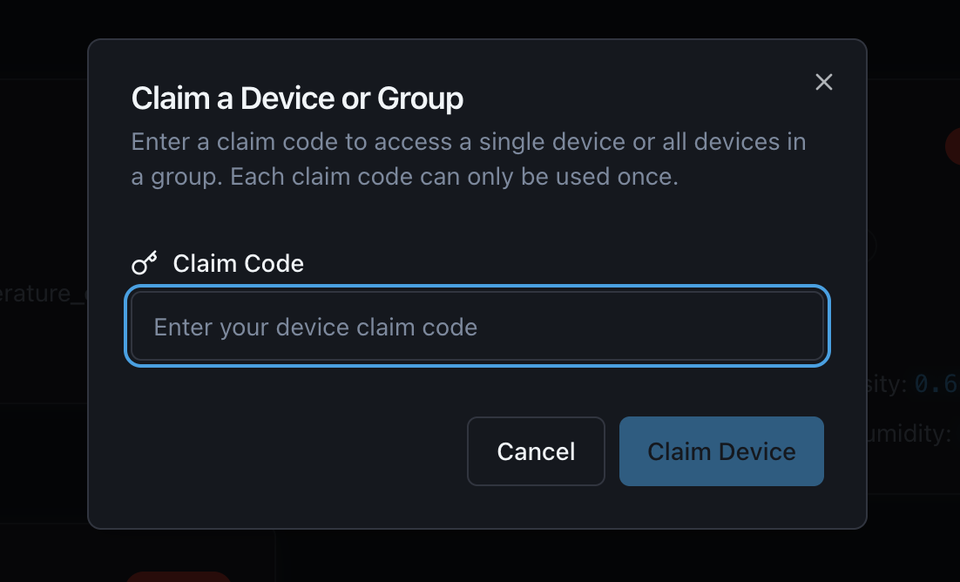
Figure 9: The "Claim a Device or Group" modal dialog.
In Cubicore Cloud, the initial device claiming code is the exact Device Unique Identification (DevEUI) of your end device.
- Open your TTN Console and navigate to your device overview (
End devices→devboard-cubicore-test). - Copy the 16-character hexadecimal DevEUI (e.g.,
70B3D57ED006XXXXor70B3D57ED007940B). (Alternatively, copy it directly from your Arduino IDE Serial Monitor boot output). - In the Cubicore Cloud modal, paste your DevEUI into the Claim Code input field.
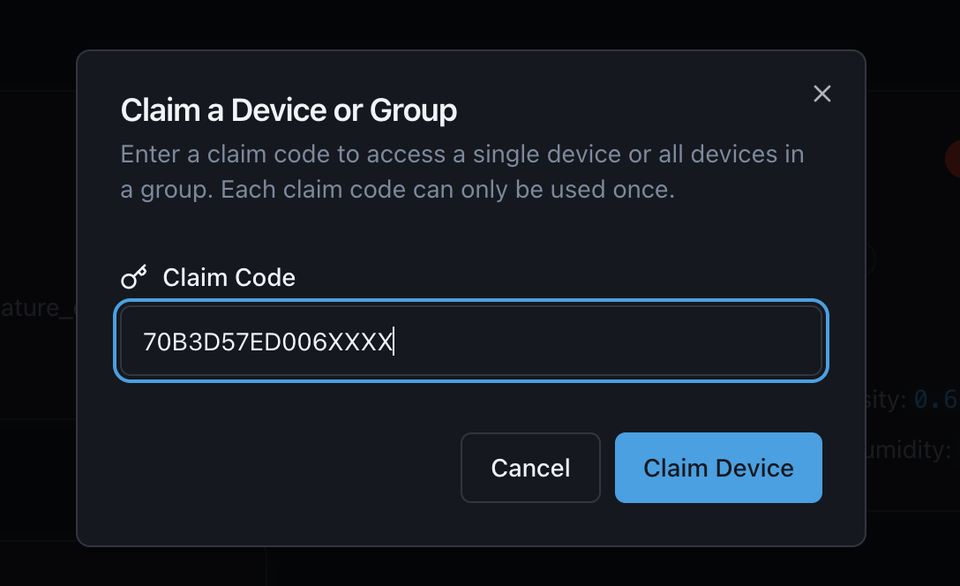
Figure 10: Pasting the device DevEUI into the Claim Code field to unlock claiming.
3.4 Confirm Claim
- Click the "Claim Device" button inside the modal dialog.
- The platform validates the identifier and binds the device to your account.
- A confirmation toast ("Device Claimed Successfully") will appear, and the device will immediately populate in your dashboard device list.
4. Step 3: Real-Time Telemetry & Device Customization
Once claimed, your Devboard is fully integrated into Cubicore Cloud.
4.1 Live Device Summary Card
Your claimed device appears immediately under the Live Device Status section on your dashboard. The summary card displays:
- Online Badge: Indicates whether the device is actively transmitting.
- Last Seen Timestamp: Shows elapsed time since the most recent transmission (e.g., Last seen less than a minute ago).
- Primary Telemetry Metrics: Shows the latest values decoded from your TTN Payload Formatter (e.g.,
Humidity_rh: 69.9%,Temperature_c: 29.9°C,Packet_counter: 5.00).
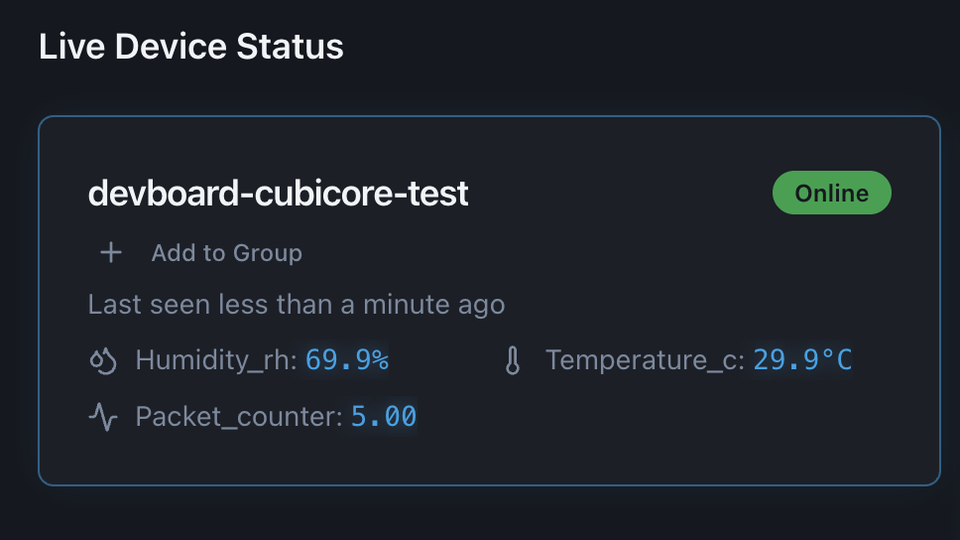
Figure 11: Claimed Devboard card showing Online status and latest decoded sensor readings.
4.2 Detailed Device Telemetry & RF Diagnostics
Click anywhere on the device card to open the comprehensive Device Overview screen:
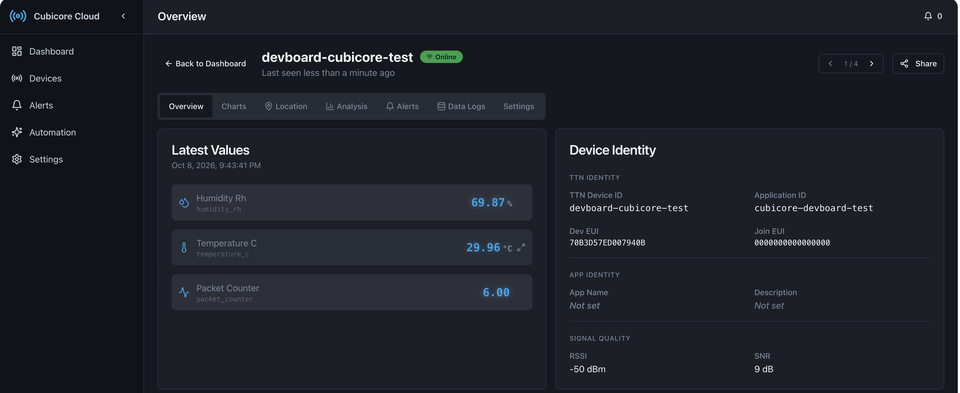
Figure 12: Device Overview displaying latest values, network identifiers, and signal quality.
The detailed inspector organizes incoming data into three clear panels:
- Latest Values: Displays live readings with automatic timestamps (e.g.,
Temperature C: 29.96 °C,Humidity Rh: 69.87 %,Packet Counter: 6.00). - Device Identity: Displays the TTN Device ID (
devboard-cubicore-test), Application ID (cubicore-devboard-test), DevEUI (70B3D57ED007940B), and JoinEUI (0000000000000000). - Signal Quality: Displays RF link metrics captured by your gateway:
- RSSI (Received Signal Strength Indicator): Shows signal strength (e.g.,
-50 dBm). Values between-40 dBmand-90 dBmindicate excellent signal propagation. - SNR (Signal-to-Noise Ratio): Measures signal quality relative to background RF noise (e.g.,
9 dB). Positive values represent clean, noise-free reception.
- RSSI (Received Signal Strength Indicator): Shows signal strength (e.g.,
4.3 Customizing Labels & Units: Payload Configuration
By default, Cubicore Cloud displays the raw variable keys generated by your TTN JavaScript payload formatter (such as humidity_rh and temperature_c).
To give your dashboard a polished, professional appearance, navigate to the Payload Configuration tab:
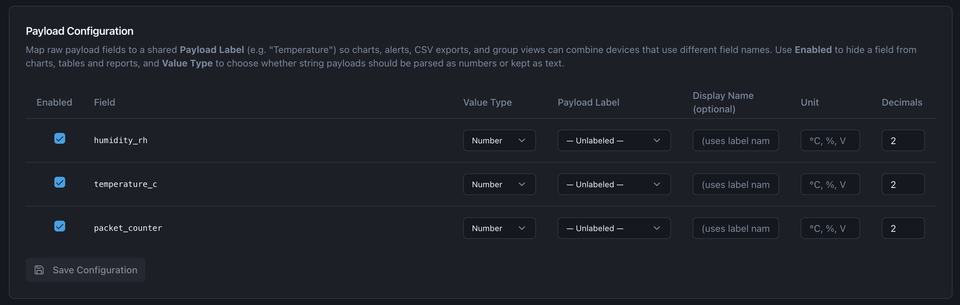
Figure 13: Mapping raw payload fields to human-readable labels, units, and decimal formatting.
Here you can customize every telemetry stream:
- Field Name & Toggle: Use the Enabled checkbox to show or hide specific fields from charts, tables, and reports.
- Value Type: Select whether the field is parsed as a Number (for graphing and threshold alerts) or String (for text states).
- Payload Label: Map device-specific field names to unified fleet labels (e.g., mapping
temperature_cto a sharedTemperaturelabel across different sensor models). - Unit of Measurement: Specify the appropriate display unit (
°C,%,V,ppm). - Decimal Precision: Set the number of decimal places to render on widgets and historical tables (e.g.,
2).
Once customized, click Save Configuration to update all widgets and charts across your account.
4.4 End-to-End Live Verification
To verify that the complete end-to-end pipeline is operational:
- Keep your Cubicore Cloud device dashboard open on your workstation or mobile device.
- Press the physical
RST(Reset) button on your Cubicore Devboard. - Observe the transmission sequence:
- Boot & OTAA Join: The blue status LED flashes as the Devboard performs an OTAA join with the Cubicore Gateway Pocket or Hub.
- Uplink Transmission: The blue LED illuminates during transmission, followed by a green LED blink confirming the packet was dispatched.
- TTN Ingestion: TTN receives the packet, decodes the binary payload using your payload formatter, and triggers the custom webhook.
- Live Cloud Update: Within milliseconds, the telemetry widgets and time-series charts on your Cubicore Cloud dashboard update automatically without needing a browser refresh.
5. Account Tiers & Uplink Quotas
Cubicore Cloud offers tiered access to balance developer accessibility with cloud scalability:
Free Developer Tier
- Every registered account starts on the Free Tier.
- Includes support for up to 3 claimed devices.
- Generous monthly uplink quotas designed for prototyping, education, testing, and continuous home-lab monitoring.
Commercial & Enterprise Tiers
When expanding beyond prototype setups into commercial operations, high-frequency industrial sensing, or enterprise fleet deployments:
- Expanded Device Capacity: Manage hundreds or thousands of nodes under unified organization groups.
- High-Frequency Telemetry: Higher daily and monthly uplink rate limits.
- Data Export & API Access: Webhook forwarding, REST API query access, and historical CSV/Parquet export.
- Custom Ingest Endpoints: Dedicated Supabase edge endpoints with private encryption keys.
To upgrade your account limits, contact support@cubicore.io or reach out to your Cubicore sales representative.
6. Troubleshooting Common Integration Issues
| Symptom / Error | Root Cause | Recommended Fix |
|---|---|---|
| Device claimed, but dashboard shows "No data" | The Devboard has not transmitted an uplink since the webhook was created, or TTN Payload Formatter is empty. | 1. Check TTN Live data to confirm that uplinks contain a non-empty decoded_payload object.2. Press the RST button on the Devboard or wait for the next scheduled sensor measurement cycle in loop(). |
| "Invalid Claim Code" error in modal | DevEUI was mistyped, contains whitespace, or has incorrect formatting. | Copy the DevEUI directly from TTN Console (End device → Overview → DevEUI). DevEUIs are exactly 16 hexadecimal characters without dashes, colons, or spaces. |
| "Device Already Claimed" error | The DevEUI is already bound to another user account. | A single DevEUI can only be bound to one user account at a time. If you previously claimed it under a different email, unclaim it first, or contact support@cubicore.io to request an ownership release. |
| TTN Webhook logs display HTTP 4xx or 5xx errors | The Base URL was truncated or the access key query parameter was omitted. | Ensure the complete Base URL is pasted, including ?key=2a8059adcf56be27903d16e4f94cdab7d72fd6cdc4f3860d. |
| Uplinks appear in TTN, but Webhook does not trigger | The Uplink message event type was deselected in the webhook configuration. | In TTN Console, open Integrations → Webhooks → cubicore-cloud-test. Confirm that Uplink message is checked. |
| Sensor values appear as raw integers instead of decimals | TTN Payload Formatter did not apply the scaling divisor. | Check Chapter 6 Step 8. Ensure your payload decoder divides the 16-bit integer by 100.0 (e.g., temperature: rawTemp / 100.0). |
Next Steps
Now that your Devboard is streaming live sensor data to Cubicore Cloud, explore direct device-to-device communication, MQTT ingestion, and battery endurance:
- Ingesting Telemetry via TTN MQTT — Subscribe to real-time telemetry streams over MQTT for custom backend processing and local databases.
- LoRa Point-to-Point (P2P) — Direct node-to-node RF communication using raw SX1262 LoRa modulation without gateways or network servers.
- Power and Battery Optimization — Manage the TP4054 Li-Po charging circuit, monitor analog battery voltages, and use ESP32-S3 deep sleep to run untethered in the field.